
Mobile Typing Hack: Use a Keyboard with Your Phone
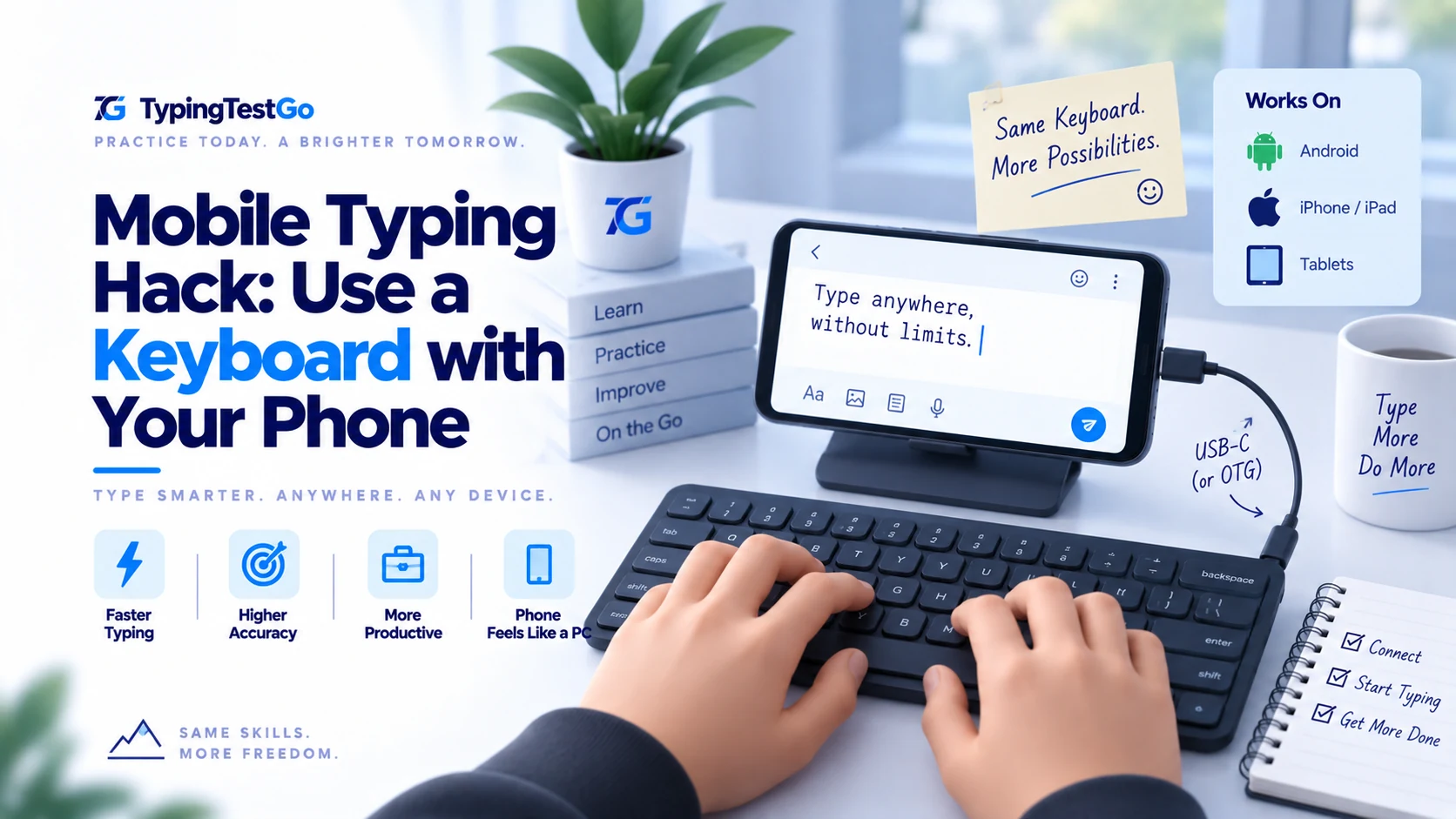
I get it. A laptop is expensive. But your ambition isn't. I've seen students reach 80 WPM-fast enough to beat 90% of professional typists-using nothing but a cracked Android phone and a $5 keyboard they found at a street market. If you have a smartphone and ten dollars, you have everything you need to build a career. This is the "Hacker" setup that converts your mobile device into a professional-grade typing station.
Why is mobile typing practice actually the hidden gold of the digital age?
Most people think you need a $1,000 MacBook to learn touch typing. They're wrong. In fact, practicing on a mobile device with a physical keyboard has a few "secret" advantages:
- Lower Latency: A direct OTG (On-The-Go) cable connection to a phone often has lower input lag than a cheap wireless keyboard on a PC.
- Zero Distractions: You can't have 50 tabs open on a phone while typing. It's just you and the Typing Test.
- The Portability Hack: You can practice in a library, a park, or on a train. While others are scrolling social media, you're building a skill.
The Truth About Cost
A decent keyboard + an OTG adapter costs less than a single meal at a restaurant ($10-$15 total). If you're serious about passing a government typing exam but can't afford a computer, this setup is your lifesaver.
What hardware do you need to bridge the gap between phone and keyboard?
To connect a "normal" keyboard to your phone, you need a bridge. That bridge is called an OTG Adapter.
For Android (The Universal King)
Most Androids use USB-C. You just need a $2 USB-C to USB-A adapter. If your phone is older, look for a "Micro-USB OTG" cable.
Expert Feedback: Don't buy the "fancy" branded ones. The cheap plastic ones from local shops work exactly the same way. Just plug it in, and Android handles the rest.
For iPhone (The Apple Tax)
You need the "Lightning to USB Camera Adapter." Apple makes this expensive ($30+), but there are third-party ones for $10 that work just fine.
Expert Feedback: iPhone users are better off going wireless. A cheap Bluetooth keyboard avoids the need for an adapter and keeps your setup clean.
Why is the TypingTestGo mobile experience superior for practice?
We built TypingTestGo to be light. It doesn't need a heavy GPU or 16GB of RAM. When you open our site on a mobile browser, it detects your environment and optimizes the font size to be readable even on a small screen.
Why it feels like 'Desktop'
Unlike other sites that force a 'Mobile App' on you, our web version gives you the full experience. You get the same real-time feedback, the same "error-underlining" (like the screenshot above), and the same result history. It’s a professional tool in your pocket.
How do you set up a professional mobile typing station for under $10?
- Surface: Desk or table
- Phone position: Lean against a book or box
- Keyboard: On flat surface in front of phone
- Seating: Chair at proper height
Improved Setup ($5-15 extra)
- Phone stand: Adjustable stand ($5-10)
- Better angle: Screen at eye level
- ergonomics: Reduce neck strain
Recommended Phone/Tablet Stands
| Stand Type | Price Range | Best For |
|---|---|---|
| Basic Plastic Stand | $2-5 | Budget solution |
| Adjustable Aluminum Stand | $10-20 | Better durability, adjustability |
| Tablet Stand (Large) | $15-30 | For tablets or larger phones |
Ergonomic Tips
- Screen height: Top of phone at eye level
- Keyboard position: Elbows at 90-degree angle
- Distance: Screen 18-24 inches from eyes
- Posture: Straight back, feet flat on floor
- Breaks: Every 30 minutes, rest 5 minutes
What is the complete cost breakdown for every budget level?
| Item | Cost |
|---|---|
| Smartphone (already have) | $0 |
| Basic USB keyboard | $5-10 |
| OTG adapter | $2-5 |
| Total | $7-15 |
Best for: Students, extreme budget constraints
Recommended Setup ($30-50)
| Item | Cost |
|---|---|
| Smartphone (already have) | $0 |
| Bluetooth keyboard (Logitech K380) | $25-35 |
| Phone stand | $5-10 |
| Total | $30-45 |
Best for: Serious learners, job seekers
Premium Setup ($60-100)
| Item | Cost |
|---|---|
| Tablet or large phone (already have) | $0 |
| Quality wireless keyboard | $35-65 |
| Adjustable tablet stand | $15-25 |
| Keyboard case/protection | $10-15 |
| Total | $60-100 |
Best for: Professional use, portability
✨ Compare to Computer
New Computer: $300-500
Mobile + Keyboard: $7-50
Savings: $290-450 (90-95% cheaper!)
Which practice tips will maximize your gains on a mobile keyboard setup?
- Day 1: Set up and test connection (15 minutes)
- Day 2-3: Get comfortable with setup, adjust positioning
- Day 4 onwards: Begin regular typing practice
Daily Practice Routine
- Duration: 20-30 minutes daily
- Warm-up: 2-3 practice tests (1 minute each)
- Main practice: 3-5 full tests (3 minutes each)
- Review: Check WPM and accuracy progress
Maximizing Battery Life
- Phone: Keep charger handy, or practice with phone plugged in
- Bluetooth keyboard: Turn off when not in use, batteries last weeks/months
- Screen brightness: Lower to 50-70% to save phone battery
Data Usage
- TypingTestGo: Uses minimal data (~1-2 MB per hour)
- Tip: Use WiFi if available (cafes, libraries, home)
- Offline mode: Load website once, then practice without internet (results won't save)
How do you troubleshoot the most common mobile keyboard issues?
Problem: Phone doesn't recognize keyboard
Solutions:
- Check if OTG adapter is plugged in correctly (both ends)
- Verify phone supports OTG (Settings → search "OTG")
- Try restarting phone with keyboard connected
- Test keyboard on another device to confirm it works
- Buy a different OTG adapter (some cheap ones don't work well)
Bluetooth Won't Pair
Problem: Keyboard not appearing in Bluetooth list
Solutions:
- Make sure keyboard is in pairing mode (LED blinking)
- Turn keyboard OFF and ON, try again
- Forget all Bluetooth devices on phone, restart, retry
- Check keyboard battery (replace batteries if weak)
- Move closer to phone (within 3 feet for pairing)
Typing Lag or Delay
Problem: Characters appear slowly on screen
Solutions:
- Wired: Check adapter connection, try different USB port
- Bluetooth: Move keyboard closer, check battery level
- Phone: Close background apps, restart phone
- Browser: Close other tabs, clear browser cache
Wrong Keys Typing
Problem: Pressing 'A' types different character
Solutions:
- Check keyboard language setting (Settings → Language & Keyboard)
- Make sure physical layout matches phone's selected layout
- Try unplugging and reconnecting
Screen Too Small
Problem: Text hard to read on phone screen
Solutions:
- Use landscape mode (rotate phone horizontally)
- Pinch to zoom in browser
- Use tablet instead of phone (if available)
- Increase browser text size (Settings → Accessibility)
Where are the best alternative locations for mobile typing practice?
Free WiFi Locations
- Public libraries: Free WiFi, quiet environment
- Cafes: Small purchase, use WiFi (Cafe Coffee Day, Starbucks)
- McDonald's/KFC: Free WiFi with purchase
- College/University campus: If you're a student
- Public WiFi hotspots: Railway stations, airports (not ideal for focus)
Mobile Data Practice
- TypingTestGo uses minimal data (~1-2 MB/hour)
- Even 1 GB data plan allows 500+ hours of practice
- Budget: $5-10/month for sufficient data
What is the definitive 8-week plan to reach 40 WPM on mobile?
Goals:
- Connect keyboard to phone
- Get comfortable with TypingTestGo.com
- Learn home row keys
Practice: 20 minutes daily
Week 3-4: Building Speed (20-30 WPM)
Goals:
- Type without looking at keyboard
- All letters memorized
- Simple sentences
Practice: 25 minutes daily
Week 5-6: Increasing Fluency (30-35 WPM)
Goals:
- Add numbers and punctuation
- Improve accuracy to 95%+
- Consistent rhythm
Practice: 30 minutes daily
Week 7-8: Reaching Target (35-40 WPM)
Goals:
- Achieve 40 WPM at 95%+ accuracy
- Comfortable typing for 5+ minutes
- Ready for job typing tests
Practice: 30 minutes daily
🏃 Success Story
Thousands of users have learned typing using mobile + keyboard setup on TypingTestGo.com. You can too! The skills you learn transfer perfectly to computer keyboards when you get access to one.
What are the most common questions about mobile-to-keyboard typing?
Yes! Physical keyboards are identical whether connected to phone or computer. Skills learned transfer 100%. The only difference is screen size-everything else is the same.
Which is better: wired or Bluetooth keyboard for mobile?
Wired (USB): Cheaper ($5-10), no battery needed, slight lag possible with
cheap
adapters.
Bluetooth: More convenient, no wires, requires batteries/charging, costs more
($15-35).
Recommendation: Budget tight? Wired. Can afford $20? Bluetooth.
Can I use any keyboard with my phone?
Almost all keyboards work with smartphones. Standard USB keyboards need adapters. Bluetooth keyboards pair directly. Avoid specialty gaming keyboards with complex software requirements.
Does this work on tablets too?
Yes! Tablets work even better-larger screen makes typing practice more comfortable. Same connection methods (USB OTG or Bluetooth).
How much data does TypingTestGo use?
Very minimal-approximately 1-2 MB per hour. You can practice for 500+ hours on just 1 GB of data.
Can I practice offline?
Partially. Load TypingTestGo.com once while online, then you can practice offline. However, progress and statistics won't save until you reconnect to internet.
Is this method good enough to get a typing job?
Absolutely! The physical keyboard skills are identical to computer keyboards. Many of our users have successfully prepared for and passed typing tests for jobs using this mobile + keyboard method.
What is on the ultimate international shopping checklist for budget typists?
Where to Buy: Amazon, Local Computer Shops
Shopping List:
- ✨ Wired USB keyboard: Basic model ($5-10)
- ✨ OTG adapter or USB-C adapter ($2-5)
- ✨ Optional: Basic phone stand ($2-5)
Search Terms for Online Shopping:
- "USB keyboard under $10"
- "OTG cable for Android" or "USB-C to USB adapter"
- "Mobile phone stand"
Recommended Budget Products (2026)
| Product | Link Search | Price |
|---|---|---|
| Basic USB Keyboard | Amazon: "USB Keyboard" | $5-10 |
| Portronics Key2-A Bluetooth | Amazon: "Bluetooth Keyboard" | $12-18 |
| USB-C to USB OTG Adapter | Amazon: "USB-C OTG adapter" | $2-5 |
| Logitech K380 | Amazon: "Logitech K380" | $25-35 |
What are my final tips for your mobile typing success?
- Start today: Don't wait for perfect setup-basic keyboard and adapter are enough
- Practice daily: 20 minutes every day beats 2 hours once a week
- Track progress: Test yourself weekly on TypingTestGo.com
- Stay motivated: See improvement in just 2-3 weeks
- Be patient: 40 WPM in 8 weeks is achievable with consistent practice
Benefits Beyond Typing
- Your phone becomes a mini computer
- Write long emails and documents easily
- Better for online studies and courses
- Improved productivity on phone
Start Your Journey
Step 1: Order keyboard + adapter today ($7-15)
Step 2: Connect to your phone (15 minutes setup)
Step 3: Visit typingtestgo.com and start first test
Step 4: Practice 20-30 minutes daily
Result: Reach 40 WPM in 8 weeks without owning a computer!
Device Sync Diagnostic
Is your phone correctly recognizing your keyboard's hardware reporting? Run our connectivity audit to check for polling rate lag and hidden mobile latency that could be shaving 5-10 WPM off your real score.
Diagnose Connectivity →